

A newer version of the Gradio SDK is available:
6.0.2
title: Common Core MCP
emoji: 📚
colorFrom: blue
colorTo: red
sdk: gradio
app_file: app.py
pinned: false
tags:
  - building-mcp-track-consumer
  - mcp
  - gradio
  - education
Common Core Standards MCP Server
A Model Context Protocol (MCP) server that provides semantic search and lookup for Common Core educational standards. Uses vector similarity search to find standards relevant to learning activities, lessons, or educational objectives. Exposes two MCP tools: find_relevant_standards for semantic search and get_standard_details for direct lookup by identifier.
See It In Action
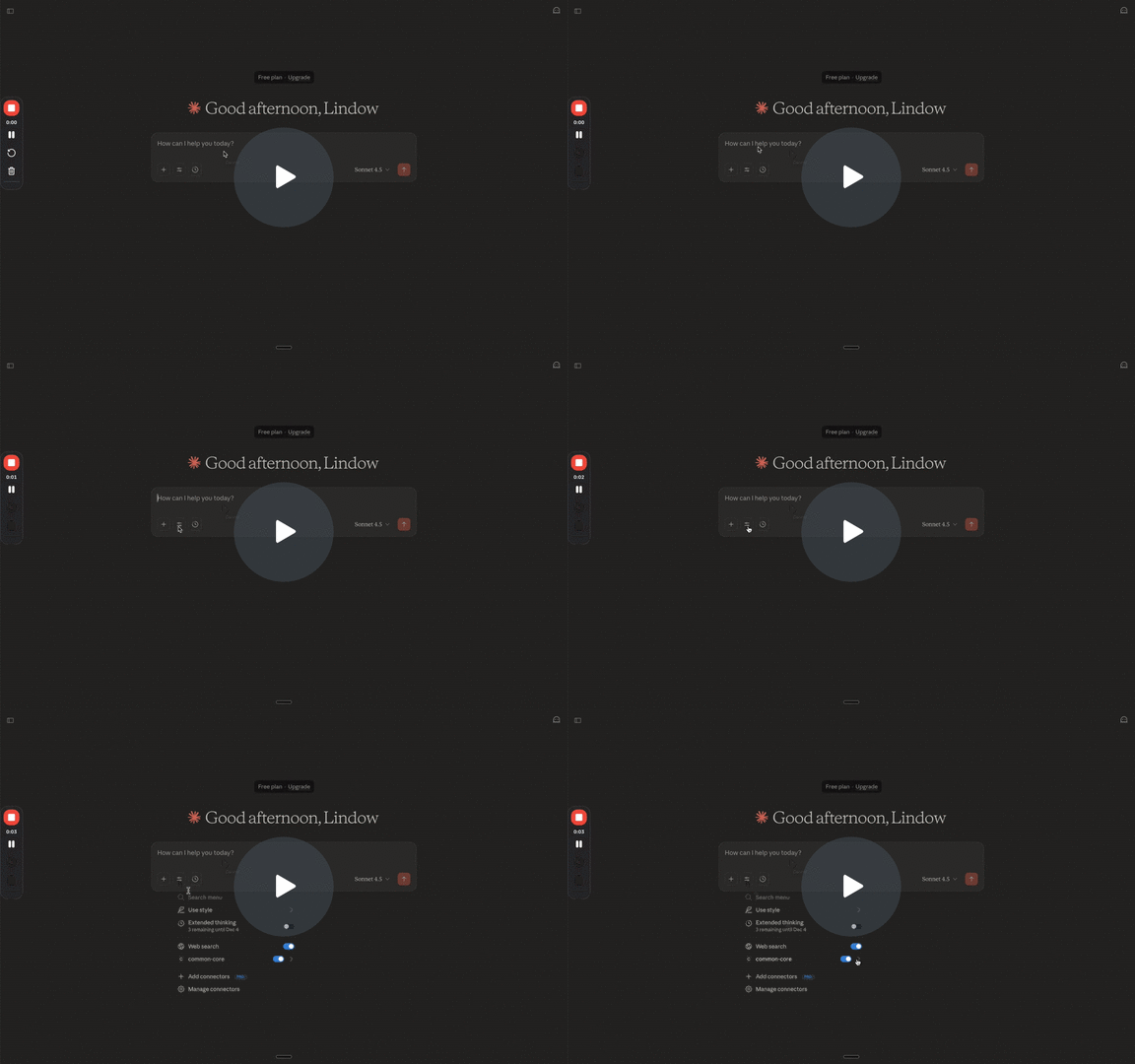
Here is a quick demo to see how the MCP server works in Claude Desktop:
MCP Tools
This server exposes two MCP tools that enable semantic search and detailed lookup of educational standards:
find_relevant_standards
Performs semantic search to find educational standards relevant to a learning activity, lesson, or educational objective.
Parameters:
activity(string, required): A natural language description of the learning activity, lesson, or educational objective. Be specific and descriptive for best results.- Examples: "teaching fractions to third graders", "reading comprehension activities", "solving quadratic equations"
max_results(integer, optional, default: 5): Maximum number of standards to return. Must be between 1 and 20.grade(string, optional): Grade level filter. Valid values:K,01,02,03,04,05,06,07,08,09,10,11,12, or09-12for high school range.
Returns: A JSON object with:
success: Boolean indicating if the search was successfulresults: Array of matching standards, each containing:_id: The standard's unique GUID (use this forget_standard_details)content: Full standard text with hierarchysubject: Subject area (e.g., "Mathematics", "ELA-Literacy")education_levels: Array of grade levels (e.g.,["03"])statement_notation: Standard notation if available (e.g.,"3.NF.A.1")standard_set_title: Title of the standard setscore: Relevance score (0-1, higher is more relevant)- Hierarchy relationships (for exploring related standards):
ancestor_ids: Array of ancestor standard IDs (ordered from root to immediate parent)child_ids: Array of child standard IDs (sub-standards)parent_id: ID of the parent standard (null for root standards)root_id: ID of the root ancestor in the hierarchydepth: Depth level in the standards hierarchyis_leaf: Boolean indicating if this is a leaf node (has no children)is_root: Boolean indicating if this is a root node (has no parent)
message: Human-readable message about the results
Exploring Related Standards: Each result includes ancestor_ids and child_ids arrays, which allow you to explore the standards hierarchy. You can use these IDs with get_standard_details to:
- Look up parent or ancestor standards to understand the broader context
- Look up child standards to see more specific sub-standards
- Explore the entire "family" of related standards around a search result
Example Usage:
{
  "activity": "teaching fractions to third graders",
  "max_results": 5,
  "grade": "03"
}
get_standard_details
Retrieves complete metadata and details for a specific standard by its ID.
Parameters:
standard_id(string, required): The standard's unique GUID. Note: This must be a GUID format (not statement notation like3.NF.A.1). To get a standard ID, first usefind_relevant_standardsto search for standards - the search results include the_idfield for each standard.
Returns: A JSON object with:
success: Boolean indicating if the lookup was successfulresults: Array containing one standard object (or empty if not found) with complete metadata including:_id: The standard's unique GUIDcontent: Full standard text with complete hierarchysubject: Subject areaeducation_levels: Grade levelsstatement_notation: Standard notation if availablestandard_set_title: Title of the standard setjurisdiction_title: Jurisdiction (e.g., "Wyoming")depth: Depth in the standards hierarchyis_leaf: Whether this is a leaf nodeis_root: Whether this is a root nodeparent_id: ID of parent standard (if any)root_id: ID of the root ancestorancestor_ids: Array of ancestor IDs (ordered from root to immediate parent)child_ids: Array of child standard IDs- All other available metadata fields
message: Human-readable message about the result
Example Usage:
{
  "standard_id": "EA60C8D165F6481B90BFF782CE193F93"
}
Workflow: The typical workflows are:
Basic Search and Lookup:
- Use
find_relevant_standardsto search for standards matching your activity - Extract the
_idfrom the search results - Use
get_standard_detailswith that_idto get complete information about a specific standard
Exploring Related Standards (Family of Standards):
- Use
find_relevant_standardsto find standards relevant to your query - Each result includes
ancestor_idsandchild_idsarrays - Use these IDs with
get_standard_detailsto explore:- Parent/Ancestor standards: Look up IDs from the
ancestor_idsarray orparent_idto understand the broader context and hierarchical structure - Child standards: Look up IDs from the
child_idsarray to see more specific sub-standards within the same family - Related standards: Use
root_idto find other standards with the same root ancestor
- Parent/Ancestor standards: Look up IDs from the
This enables exploring entire families of standards. For example, if you find a specific standard about fractions, you can look up its parent to see the broader category, or look up its children to see more specific fraction-related standards at different levels.
Screenshots

Screenshots showing the Gradio interface, MCP client integration, and example results will be added here.
Try It Out
You can quickly experiment with this MCP server without any setup by using the deployed Hugging Face Space. The Space connects to a pre-existing Pinecone database with Wyoming standards already loaded, so you can start using it immediately.
Hugging Face Space: https://huggingface.co/spaces/MCP-1st-Birthday/common_core_mcp
The MCP server endpoint is available at: https://MCP-1st-Birthday-common-core-mcp.hf.space/gradio_api/mcp/
Important: Database Setup
Hugging Face Space: The deployed Hugging Face Space connects to a pre-existing Pinecone database with Wyoming standards already loaded. No additional setup is needed when using the Space.
Local Development: If you're running this project locally, you must set up your own Pinecone database and load standards into it. Without standards loaded in Pinecone, the MCP server has nothing to return and searches will be empty. See the Local Setup with Pinecone section below for detailed instructions.
Installation
Prerequisites
- Python 3.12+
- Pinecone account with API key (Get started with Pinecone)
- Hugging Face account with token (for chat interface)
- Common Standards Project API key (for downloading standards locally)
Setup
git clone <repository-url>
cd common_core_mcp

# Create and activate virtual environment
python3.12 -m venv .venv
source .venv/bin/activate  # On Windows: .venv\Scripts\activate

# Install dependencies
pip install -r requirements.txt

# Copy environment file template
cp .env.example .env
Edit .env and set:
PINECONE_API_KEY: Your Pinecone API key (Get started with Pinecone)PINECONE_INDEX_NAME: Pinecone index name (default:common-core-standards)PINECONE_NAMESPACE: Pinecone namespace (default:standards)HF_TOKEN: Hugging Face token for chat interfaceCSP_API_KEY: Your Common Standards Project API key (for local setup - get one at https://commonstandardsproject.com/developers)
Run
python app.py
The Gradio interface runs at http://localhost:7860. The MCP server endpoint is at http://localhost:7860/gradio_api/mcp/.
Local Setup with Pinecone
Before the MCP server can return any results, you must set up your Pinecone database and load standards into it. This section guides you through the complete workflow using the tools CLI.
Note: Make sure your virtual environment is activated before running CLI commands:
source .venv/bin/activate # On Windows: .venv\Scripts\activate
Step 1: Initialize Pinecone Index
First, create and configure your Pinecone index:
python tools/cli.py pinecone-init
This command:
- Validates your Pinecone API key
- Checks if the index exists (creates it if not)
- Shows index statistics including vector counts
Step 2: Discover Available Jurisdictions
List available jurisdictions (states, organizations) to find what standards you can download:
python tools/cli.py jurisdictions
Filter by name or type:
# Search for Wyoming
python tools/cli.py jurisdictions --search wyoming

# Filter by state type
python tools/cli.py jurisdictions --type state
Step 3: View Jurisdiction Details
Get detailed information about a jurisdiction, including available standard sets:
python tools/cli.py jurisdiction-details <JURISDICTION_ID>
Example:
# Find Wyoming's jurisdiction ID first
python tools/cli.py jurisdictions --search wyoming

# Then view details (using the ID from previous command)
python tools/cli.py jurisdiction-details 744704BE56D44FB9B3D18B543FBF9BCC
This shows all standard sets available for that jurisdiction with their subjects, grade levels, and titles.
Step 4: Download Standard Sets
Download standard sets either by specific ID or by jurisdiction with filtering options.
Download by jurisdiction (recommended):
python tools/cli.py download-sets --jurisdiction <JURISDICTION_ID>
You can filter by multiple criteria (all filters combine with AND logic):
# Download all math standards for grades 3-5 in Wyoming
python tools/cli.py download-sets \
  --jurisdiction 744704BE56D44FB9B3D18B543FBF9BCC \
  --education-levels "03,04,05" \
  --subject math

# Preview what would be downloaded (dry run)
python tools/cli.py download-sets \
  --jurisdiction <JURISDICTION_ID> \
  --dry-run
Download by specific set ID:
python tools/cli.py download-sets <SET_ID>
The CLI automatically processes downloaded sets into Pinecone-ready format. Downloads are cached locally in data/raw/standardSets/<SET_ID>/.
Step 5: List Downloaded Sets
View all downloaded standard sets and their processing status:
python tools/cli.py list
This shows which sets are downloaded, processed, and ready for upload to Pinecone.
Step 6: Upload to Pinecone
Upload processed standard sets to your Pinecone index:
# Upload all processed sets
python tools/cli.py pinecone-upload --all

# Upload a specific set
python tools/cli.py pinecone-upload --set-id <SET_ID>

# Preview what would be uploaded
python tools/cli.py pinecone-upload --all --dry-run
The upload process:
- Loads processed standard sets from
data/raw/standardSets/<SET_ID>/processed.json - Creates vector embeddings using the same model as the search functionality
- Uploads records in batches (default: 96 records per batch)
- Tracks uploaded sets to avoid duplicates
Step 7: Verify Setup
After uploading, verify your index has data:
python tools/cli.py pinecone-init
This displays index statistics showing the total number of vectors uploaded.
Complete Example Workflow
Here's a complete example for setting up Wyoming standards:
# 1. Initialize Pinecone
python tools/cli.py pinecone-init

# 2. Find Wyoming's jurisdiction ID
python tools/cli.py jurisdictions --search wyoming
# Note the jurisdiction ID from the output (e.g., 744704BE56D44FB9B3D18B543FBF9BCC)

# 3. View available standard sets
python tools/cli.py jurisdiction-details 744704BE56D44FB9B3D18B543FBF9BCC

# 4. Download all Wyoming standards (or filter as needed)
python tools/cli.py download-sets --jurisdiction 744704BE56D44FB9B3D18B543FBF9BCC --yes

# 5. Verify downloads
python tools/cli.py list

# 6. Upload to Pinecone
python tools/cli.py pinecone-upload --all

# 7. Verify index has data
python tools/cli.py pinecone-init
CLI Command Reference
All available CLI commands:
python tools/cli.py --help
python tools/cli.py <command> --help  # Get help for specific command
Available commands:
jurisdictions- List available jurisdictions with filteringjurisdiction-details <ID>- View details and standard sets for a jurisdictiondownload-sets- Download standard sets by ID or jurisdictionlist- List all downloaded standard setspinecone-init- Initialize or check Pinecone index statuspinecone-upload- Upload processed sets to Pinecone
Usage
Gradio Web Interface
The interface has three tabs:
Search Tab: Find standards by activity description. Enter a natural language description (e.g., "teaching fractions to third graders"), set max results (1-20), and optionally filter by grade. Results include standard IDs that can be used in the Lookup tab.
Lookup Tab: Retrieve full details for a specific standard by its ID. Note: This tab only accepts standard IDs (GUIDs). To get a standard ID, first use the Search tab to find relevant standards - the search results will include the ID for each standard. Then copy that ID and paste it into the Lookup tab to get complete details.
Chat Tab: Ask questions about standards. The assistant uses MCP tools to search and retrieve information.
MCP Client Integration
Connect from Claude Desktop, Cursor, or other MCP clients.
MCP Server URL:
- Hugging Face Space:
https://MCP-1st-Birthday-common-core-mcp.hf.space/gradio_api/mcp/ - Local:
http://localhost:7860/gradio_api/mcp/
Claude Desktop Configuration:
Claude Desktop requires using npx mcp-remote to connect to remote MCP servers. First, ensure you have Node.js v20 or later installed.
Edit your Claude Desktop config file:
- macOS:
~/Library/Application Support/Claude/claude_desktop_config.json - Windows:
%APPDATA%\Claude\claude_desktop_config.json - Linux:
~/.config/Claude/claude_desktop_config.json
Add:
{
  "mcpServers": {
    "common-core": {
      "command": "npx",
      "args": [
        "mcp-remote",
        "https://MCP-1st-Birthday-common-core-mcp.hf.space/gradio_api/mcp/",
        "--transport",
        "streamable-http"
      ]
    }
  }
}
Troubleshooting: Node.js Version Issues
If you see an error like ReferenceError: File is not defined, your Node.js version is too old. The mcp-remote package requires Node.js v20 or later.
Check your Node.js version:
node --version
If using nvm and have Node v20+ installed, you can specify the full path to npx in your config:
{
  "mcpServers": {
    "common-core": {
      "command": "/path/to/.nvm/versions/node/v22.x.x/bin/npx",
      "args": [
        "mcp-remote",
        "https://MCP-1st-Birthday-common-core-mcp.hf.space/gradio_api/mcp/",
        "--transport",
        "streamable-http"
      ],
      "env": {
        "PATH": "/path/to/.nvm/versions/node/v22.x.x/bin:/usr/local/bin:/usr/bin:/bin"
      }
    }
  }
}
Replace /path/to/.nvm/versions/node/v22.x.x/bin with your actual Node.js v20+ installation path (e.g., ~/.nvm/versions/node/v22.18.0/bin on macOS/Linux).
Also clear the npx cache to remove any cached packages from older Node versions:
rm -rf ~/.npm/_npx/
Cursor Configuration:
Edit your Cursor MCP config and add:
{
  "mcpServers": {
    "common-core": {
      "url": "https://MCP-1st-Birthday-common-core-mcp.hf.space/gradio_api/mcp/"
    }
  }
}
Restart the client after configuration. The tools find_relevant_standards and get_standard_details will appear in your client. See the MCP Tools section above for detailed documentation on these tools.
Architecture
Built with:
- Gradio 6.0+: Web interface and MCP server functionality
- Pinecone: Vector database for semantic search (Pinecone)
- Hugging Face Inference API: Chat interface with tool calling (Qwen/Qwen2.5-7B-Instruct via Together AI provider)
- Pydantic: Data validation and settings management
Demo Video
Watch the demo video to see the MCP server in action.
The demo video demonstrates:
- MCP server integration with Claude Desktop or Cursor
- Using the Gradio web interface
- Chat interface with tool calling
- Example queries and results
Social Media
Acknowledgments
- MCP 1st Birthday Hackathon organizers
- Gradio team for Gradio 6.0+ with native MCP server support
- Pinecone for vector database infrastructure
- Hugging Face for model hosting and Inference API
- Common Core Standards for providing the educational standards data